How to Use Split PDF — A Complete Guide
<h1>Split Large PDFs into Smaller Files — No Uploads, No Compromises</h1> You're not alone if you've ever stared at a 100-page PDF and wished you could spli...
March 2, 2026
6 min read
You're not alone if you've ever stared at a 100-page PDF and wished you could split it into manageable chunks. Imagine this: you're a freelance graphic designer with a 100-page client portfolio. You need to send the first 50 pages to a printer, but the file is too big to email. You also need to keep the full document for your own records. This is where splitting PDFs becomes a practical necessity — not just a convenience.
Splitting PDFs isn't just about dividing pages. It's about organizing content, reducing file sizes, and making documents usable for different purposes. The Split PDF tool lets you do this without ever uploading your files to a server. Everything happens in your browser, meaning your data never leaves your device. This is critical for professionals handling sensitive information, but it's also just good practice for anyone who values privacy.
Why Splitting PDFs Matters — And How It Works
Let’s say you have a 100-page document. Splitting it into two 50-page files can reduce the file size by about 40-65% depending on the content. If you're sending a 25MB PDF to a client, splitting it into two 12MB files makes it easier to email without hitting attachment limits. But the real benefit is control — you can share specific sections without exposing the entire document. The Split PDF tool works by letting you select specific pages or define a range. For example, you could split a 100-page document into three files: pages 1-30, 31-60, and 61-100. This is ideal for separating different sections of a report or isolating visual elements for a presentation. The process takes just a few seconds, and since everything is handled locally, there's no risk of data leaks.Step-by-Step: Splitting PDFs with the Right Tool
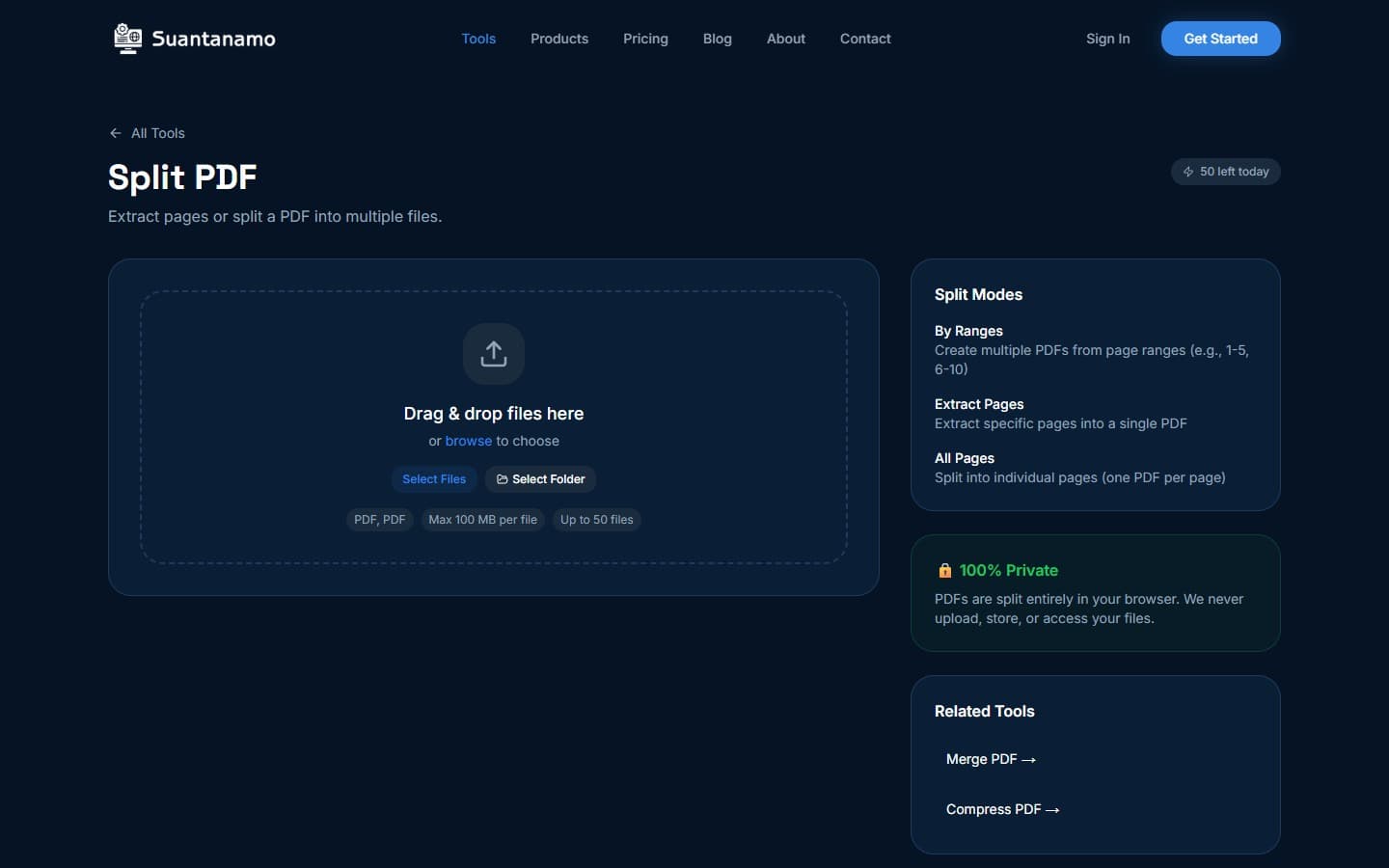
Here’s how to split a PDF using the Split PDF tool: 1. **Open the tool in your browser** — no installation required. 2. **Drag and drop your PDF file** or click to select it. 3. **Choose your split method**: - **Select specific pages**: Enter page numbers like "1,3,5-7" to extract isolated sections. - **Split by range**: Define start and end pages (e.g., "1-50" for the first half). 4. **Adjust settings if needed** — some tools let you choose output formats or compression levels. 5. **Download your new files** — they’ll be saved as separate PDFs on your device. This workflow is especially useful for separating visual elements from text. For example, if you’re working on a design project, you might split a PDF to isolate vector graphics for a presentation while keeping the text document separate. The key is that you never have to upload your files — everything stays local.When Splitting PDFs Isn’t Enough — And What to Do Next
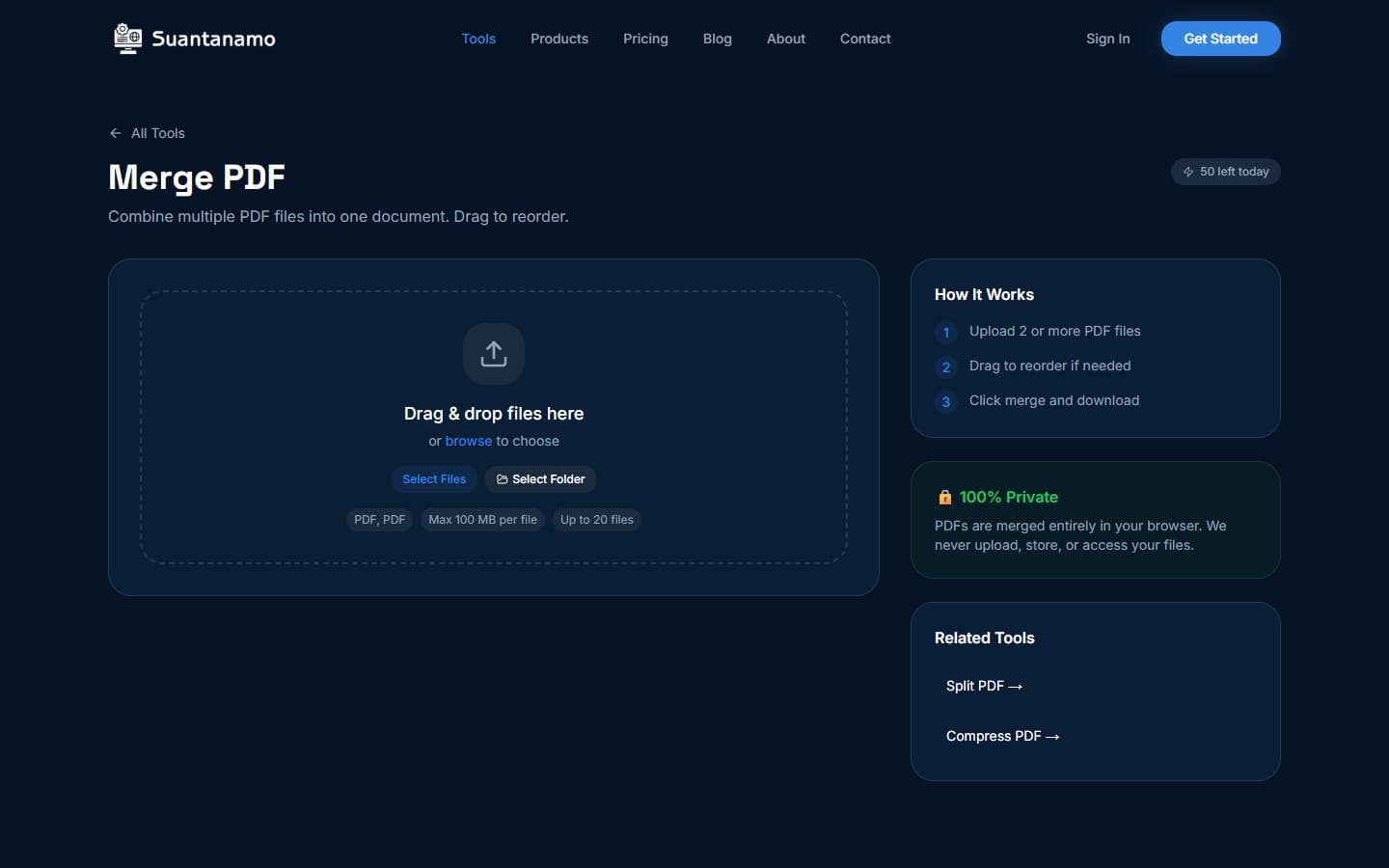
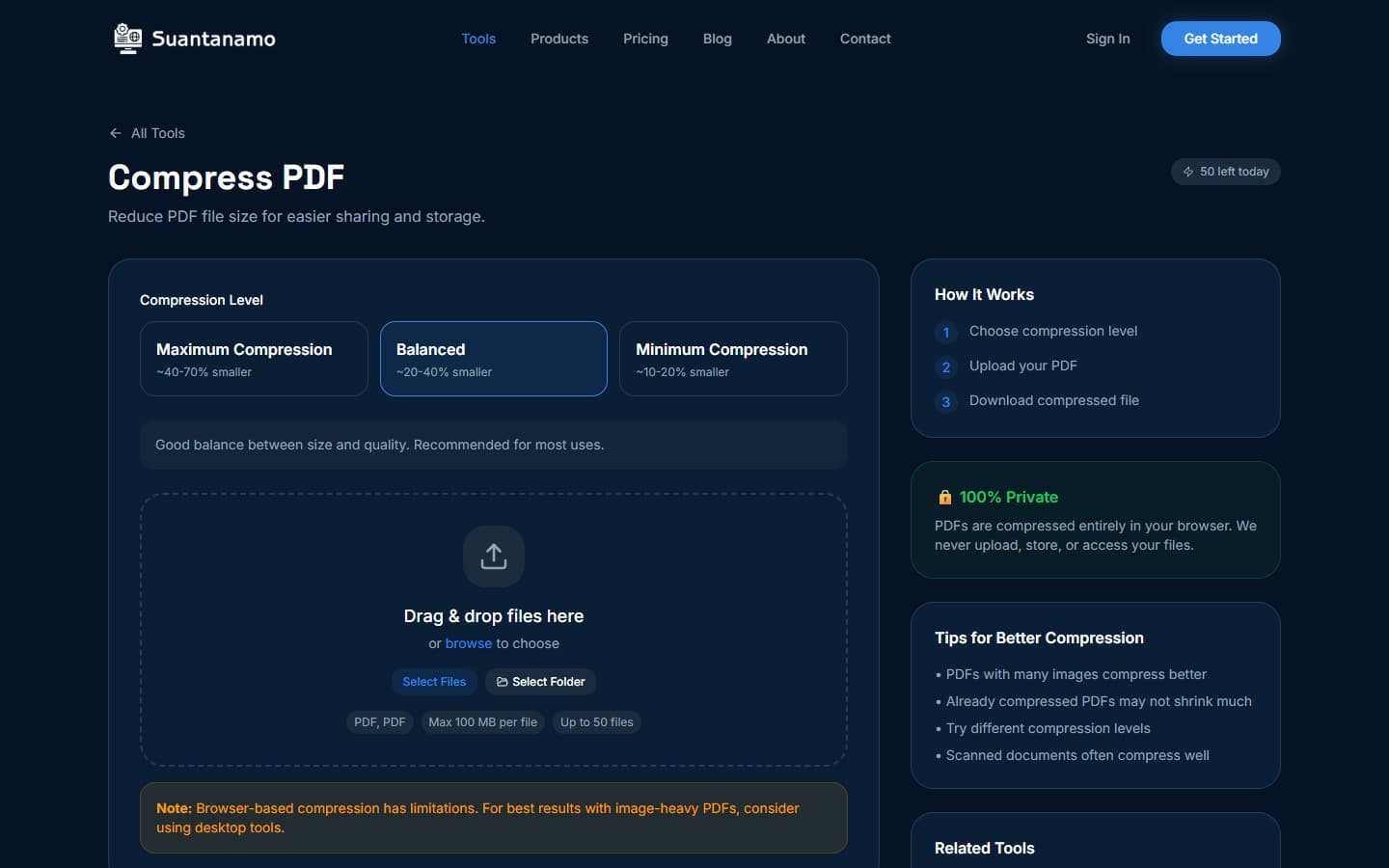
Splitting a PDF is just the first step. Let’s say you’ve divided a 100-page document into three files. Now you might want to compress them to reduce file size further. The Compress PDF tool can cut file size by up to 80% without losing quality. For example, a 25MB PDF might shrink to 5-8MB after compression, making it easier to share or store. Or you might want to merge the split files later. The Merge PDF tool lets you combine multiple files into one, which is handy if you need to revisit a full document. These tools work together seamlessly, and since all processing happens in the browser, you don’t have to worry about data privacy.Real-World Use Cases That Matter
Let’s talk about a real scenario: you’re a teacher preparing a 50-page lesson plan. You need to send the first 20 pages to students for a quick overview, but the full document is too large to email. Splitting the PDF into two files solves this. You can also compress the full document for archival purposes, ensuring it takes up less space on your device. Another example: a graphic designer working on a 100-page client portfolio. They might split the document into sections for different clients, compress each file, and then convert specific pages to images for a presentation. This workflow shows how splitting PDFs can be part of a larger digital workflow, not just a standalone task.Privacy First — Why Local Processing Matters
You might not think about this, but splitting a PDF is a privacy-sensitive task. If you upload your file to a cloud service, there’s always a risk of data exposure. The Split PDF tool avoids this by handling everything locally. Your file never leaves your browser, which is critical for professionals handling sensitive information. This approach aligns with the philosophy of privacy-first tools. Unlike many online services that require uploads, the Split PDF tool respects your data by keeping it on your device. It’s a small but important detail that makes a big difference for users who value security.Pro Tips for Splitting PDFs Effectively
- **Always split before compressing** — splitting first ensures you’re working with smaller files. - **Use specific page ranges** for precision. For example, "1-10" is better than "random pages" if you need to isolate content. - **Check for duplicates** — sometimes splitting a PDF can create duplicate pages if the original file has formatting issues. - **Combine with other tools** — split, compress, and convert as needed for different use cases. If you’re working with large design files or complex documents, consider using the desktop version of the Split PDF tool for advanced features. But for most users, the browser-based tool is more than sufficient.Final Thoughts — Splitting PDFs Is a Skill Worth Mastering
Splitting PDFs isn’t just about dividing pages — it’s about organizing, protecting, and optimizing your digital workflow. Whether you’re a student, a professional, or a hobbyist, the ability to split, compress, and convert PDFs is a practical skill that saves time and reduces frustration. The key takeaway? Always process files locally. Your data deserves better than cloud-based tools that require uploads. Split PDFs, compress them, and keep your workflow under control — no compromises, just results. --- *This article was written with AI assistance and reviewed by our team.*Try Split PDF Free
Extract pages or split a PDF into multiple files. Select specific page ranges.
Use Split PDF Now →