How to Use JSON Formatter — A Complete Guide
<h1>How to Use JSON Formatter — A Complete Guide</h1> <p>At 2 a.m., you're staring at a 300-line JSON response from an API that's throwing a syntax error. T...
At 2 a.m., you're staring at a 300-line JSON response from an API that's throwing a syntax error. The error message is cryptic, your coffee is cold, and the JSON is a tangled mess of braces and commas. You need to fix it fast — and that's where a JSON formatter becomes your lifeline. Let's walk through how to use it effectively, why it matters, and how it fits into your workflow.
What Is a JSON Formatter and Why You Need One
A JSON formatter is a tool that takes raw JSON and restructures it into a readable format. It adds indentation, line breaks, and spacing to make nested objects and arrays easier to parse. Beyond aesthetics, it does three crucial things:
- Validates syntax: It checks for missing commas, mismatched brackets, or invalid characters. For example, if you forgot a closing bracket in a 100-line JSON object, it'll highlight the error.
- Highlights structure: It visually separates keys and values, making it easier to spot nested data. Imagine a JSON response from a weather API — a formatter turns it from a tangled mess into a tree-like structure.
- Minifies JSON: When you're done editing, it can compress the JSON back into a compact format, reducing file size by up to 70% depending on the data.
But here's the catch: JSON formatters are only as useful as your browser. If you're working on a project that requires strict data integrity, you need a tool that processes everything locally. That's where our JSON Formatter shines — it runs entirely in your browser, so your data never leaves your device.
Step-by-Step: How to Use JSON Formatter
Let’s say you’re working with a JSON file that’s 300 lines long and looks like this:
{"name":"John Doe","age":30,"email":"john@example.com","hobbies":["reading","coding"],"address":{"city":"New York","zip":"10001"}}
Here’s how to format it using our tool:
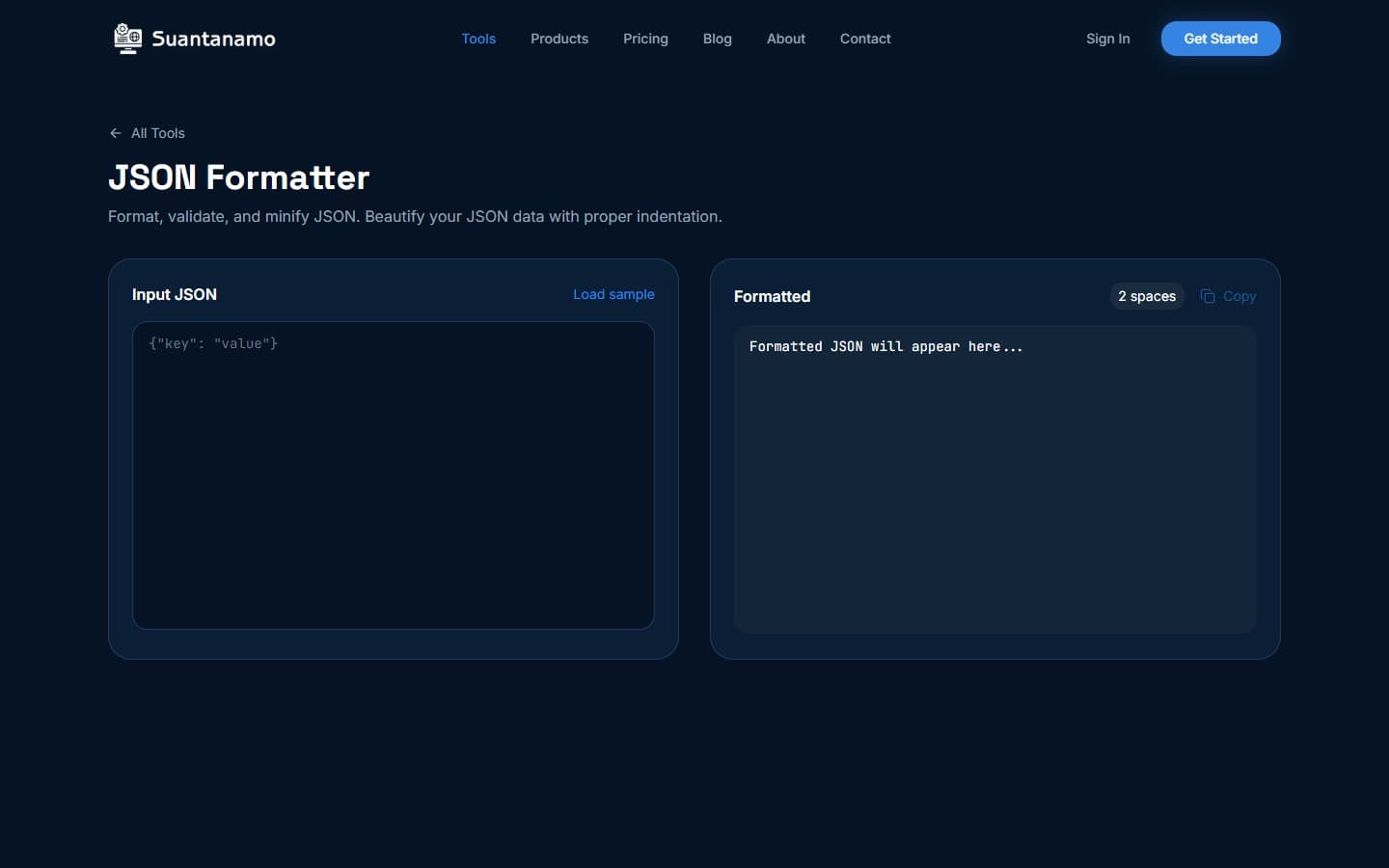
- Paste your JSON: Open the JSON Formatter tool. Click the “Paste JSON” button or manually type your data into the input box.
- Format it: Click the “Format JSON” button. The tool will instantly restructure your data. The output will look like this:
{
  "name": "John Doe",
  "age": 30,
  "email": "john@example.com",
  "hobbies": [
    "reading",
    "coding"
  ],
  "address": {
    "city": "New York",
    "zip": "10001"
  }
}
Voilà. Now you can spot errors, edit values, or share the formatted JSON with a teammate. If you’re done, click “Minify JSON” to compress it back into a single line. This is especially useful when sending data to an API — a compact JSON can reduce bandwidth usage by up to 60%.
Real-World Use Cases
Let’s break this down with a concrete example. Suppose you’re a developer working on a dashboard that pulls data from multiple APIs. One of those APIs returns a JSON response that’s malformed — the brackets are mismatched, and the keys are in the wrong order. Here’s how a JSON formatter helps:
- Identify syntax errors: The formatter highlights the mismatched brackets, letting you fix the issue before it breaks your application.
- Visualize nested data: When you’re parsing a complex JSON structure, like a user profile with nested preferences and settings, the formatter makes it easier to navigate the hierarchy.
- Share formatted data: If you need to collaborate with a teammate, sharing a formatted JSON is far more readable than a compact version.
Always validate your JSON before sending it. Even a single typo can cause an API to reject the request. Our tool does this automatically, saving you hours of debugging.
Why Local Processing Matters
Let’s talk privacy. When you use a JSON formatter, the data is processed in your browser — no files ever leave your device. This is a big deal if you’re handling sensitive data, like user credentials or internal company metrics. For example, if you’re working on a project that involves GDPR-compliant data, you need to ensure that no third-party tool has access to your files. That’s why our tool is built with privacy in mind: everything happens locally, and you can even run it offline if needed.
Compare this to cloud-based formatters, which often require uploading your data to a server. While convenient, this introduces risks: data breaches, unexpected data retention, and compliance issues. By using a browser-based tool, you maintain full control over your data — and that’s a win for both privacy and productivity.
When to Use JSON Formatter vs. Other Tools
While the JSON formatter is a powerhouse for handling JSON data, it’s not the only tool in your toolkit. Here’s how it fits into a broader workflow:
- For JSON data: Use our JSON Formatter to structure, validate, and minify JSON. It’s perfect for developers, API integrators, and data analysts.
- For PDFs: If you’re dealing with documents, our PDF Compressor can reduce file sizes by up to 80% without losing quality. It’s ideal for sending large files via email or sharing with clients.
- For images: When you need to optimize visuals, our Image Compressor cuts file sizes by 60-80% while preserving quality. This is a lifesaver when working with high-resolution photos or graphics.
These tools are designed to work together. For instance, if you’re processing a JSON file that includes image URLs, you might first use the JSON formatter to structure the data, then use the image compressor to optimize the assets. The key is to keep everything local — no data ever leaves your device.
--- *This article was written with AI assistance and reviewed by our team.*