How to Use PDF to Images — A Complete Guide
<h1>How to Use PDF to Images — A Complete Guide</h1> <p>Stuck with a 12-page PDF invoice that won’t open on your client’s system? You’re not alone. This is ...
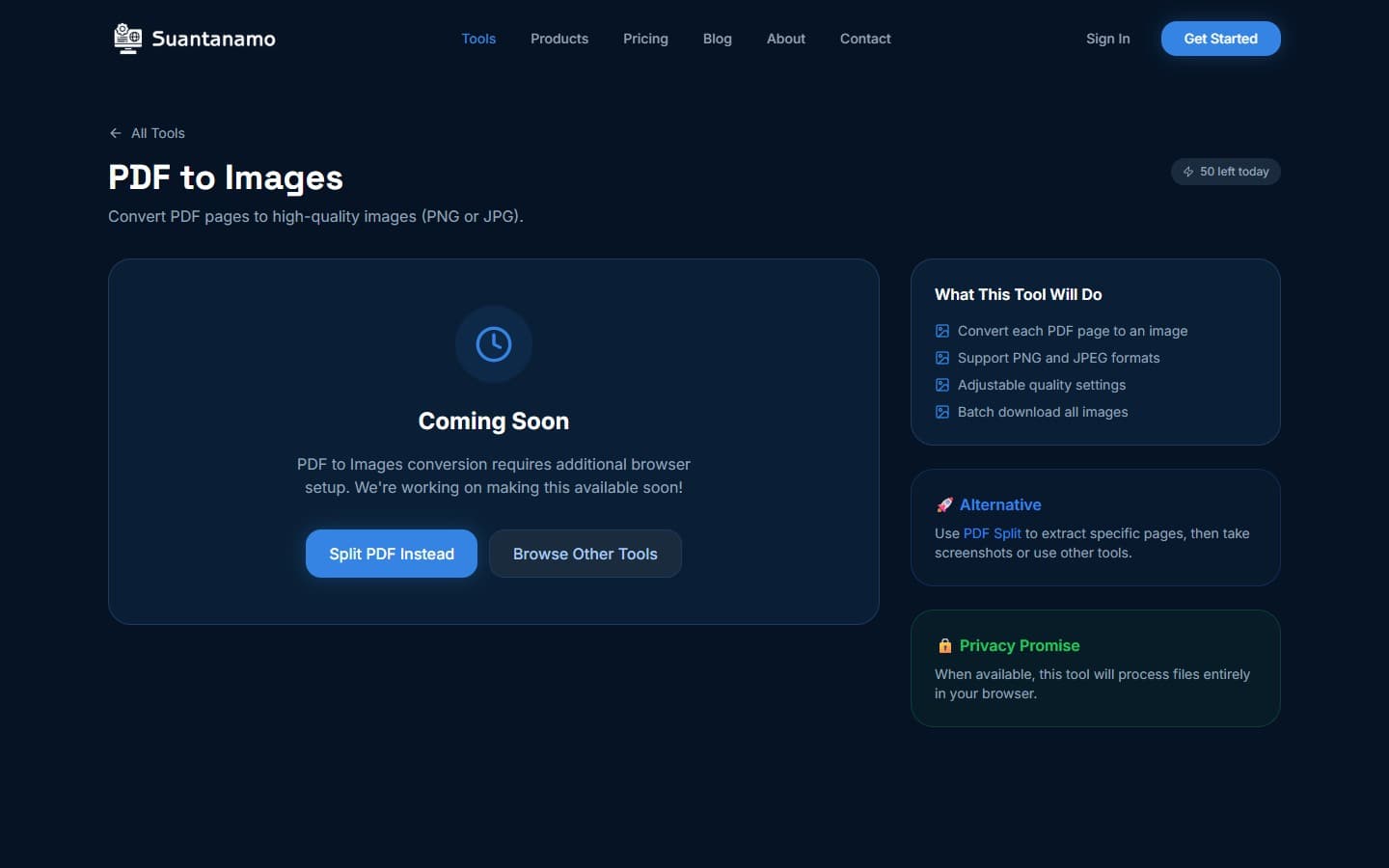
Stuck with a 12-page PDF invoice that won’t open on your client’s system? You’re not alone. This is why PDF to Images exists — to solve the problem of sharing documents when PDFs fail.
Why Convert PDFs to Images?
PDFs are great for documents, but they’re not always the best format for sharing. Images work on any device, platform, or system. Converting a PDF to images also makes it easier to annotate, embed in presentations, or use in design workflows. Here’s what you can expect:
- File size reduction: A 10-page PDF can shrink to 40-65% of its original size when converted to PNGs or JPGs.
- Privacy: All processing happens in your browser — no files leave your device.
- Compatibility: Images work on any system, including those that can’t open PDFs.
But there’s a catch. Converting PDFs to images isn’t a one-size-fits-all solution. A 100-page document becomes 100 images — not ideal for most use cases. That’s where other tools come in. For example, if you need to reduce the size of the original PDF before conversion, Compress PDF can cut file sizes by up to 70% without losing quality.
Step-by-Step: Convert PDF to Images
Using PDF to Images is simple, but understanding the process helps avoid common pitfalls. Here’s how to do it:
- Open the tool: Go to https://suantanamo.com/pdf/to-images and click "Upload PDF."
- Choose format: Select PNG or JPG. JPG is better for photos, PNG for crisp text or graphics.
- Adjust settings: Set the resolution (300 DPI is standard for print, 72 DPI for web). Lower resolution reduces file size.
- Convert: Click "Convert" and wait. A 10-page document might take 10–15 seconds, depending on your internet speed.
- Download: The tool will generate a ZIP file with all the images. Download and share.
For example, converting a 15-page PDF invoice with 300 DPI PNGs might result in a 12MB ZIP file. If that’s too large, use Compress Images to reduce each image by 60-80% without visible loss.
Best Practices for PDF to Image Conversion
Not all PDFs are created equal. Here’s how to get the best results:
- Scan quality: If the PDF is a scanned document, convert it to JPG first. Scans compress well, while text-heavy PDFs convert better to PNG.
- Batch processing: The tool handles multiple files at once, but keep each PDF under 100 pages for optimal performance.
- Resolution tradeoffs: Lowering resolution from 300 DPI to 150 DPI can cut image size in half. Test both for your use case.
- Image format choice: Use PNG for logos, charts, or text-heavy pages. JPG is better for photos or scanned images with gradients.
One unexpected detail: Some PDFs have embedded fonts that convert poorly to images. If you notice text blurring, try converting the PDF to a different format first using Convert PDF before exporting to images.
When to Use This Tool vs. Others
While PDF to Images is perfect for converting documents to visuals, other tools handle different needs:
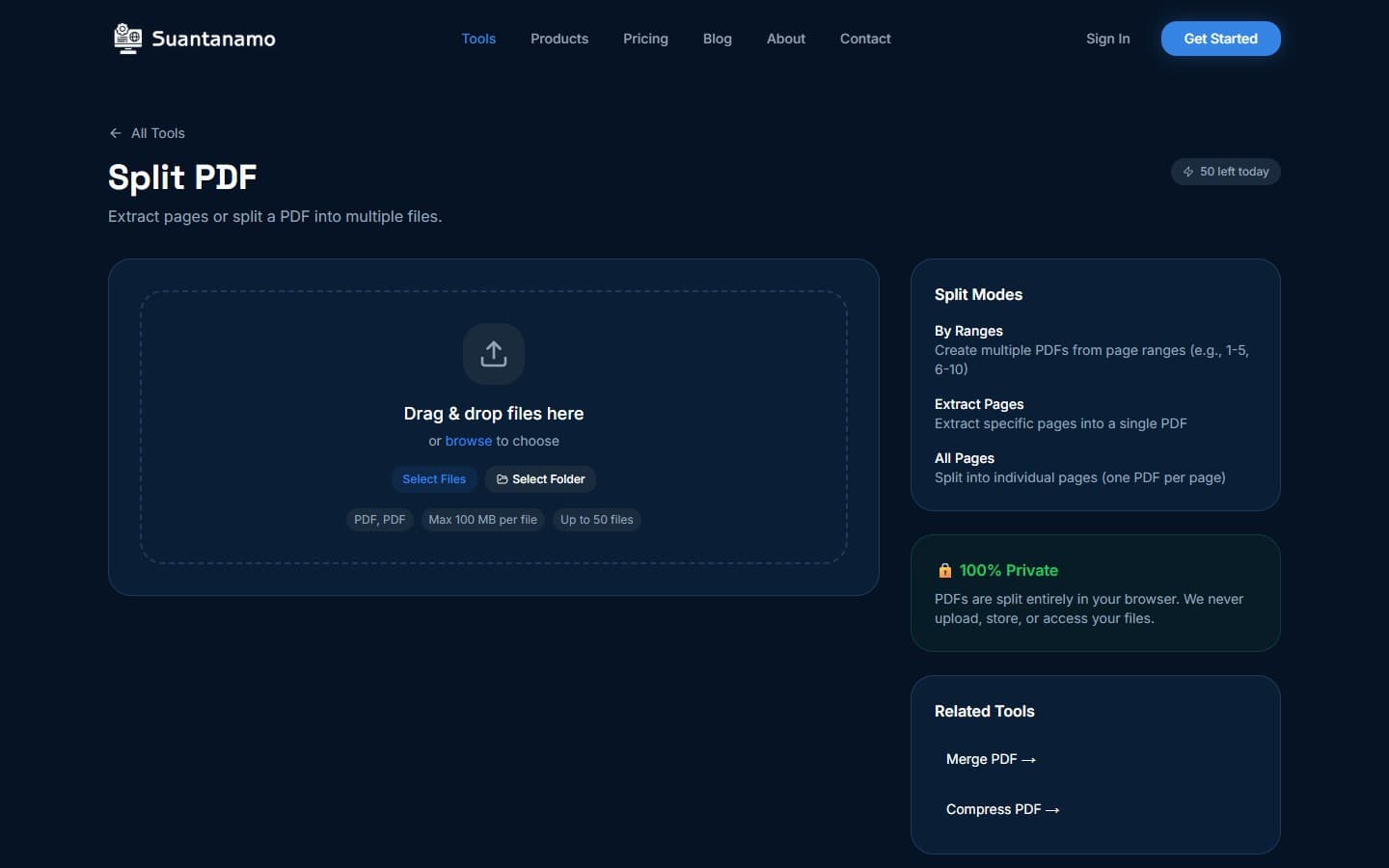
- Split PDF: If you need to extract specific pages for conversion, use Split PDF first.
- Compress PDF: If the original file is too large, compress it before converting to images to avoid oversized ZIP files.
- Convert Images: After conversion, use Convert Images to switch between formats like PNG and WebP for web use.
For example, if you’re preparing a 20-page report for a client who can’t open PDFs, split the document into individual pages first, convert each to PNG, then compress them to 150 DPI for a final ZIP of 8MB.
Privacy and Security Considerations
Every file you process stays on your device. The browser runs the conversion in isolation, so even if you’re using a public computer, your documents never leave your machine. This is critical for sensitive data like contracts, invoices, or medical records.
But don’t rely solely on privacy. If you’re working with confidential information, consider encrypting files before conversion. While the tool doesn’t support encryption, you can use your OS’s built-in tools to secure the ZIP file after conversion.
--- *This article was written with AI assistance and reviewed by our team.*Try PDF to Images Free
Convert PDF pages to images. Export as JPG or PNG with customizable quality.
Use PDF to Images Now →